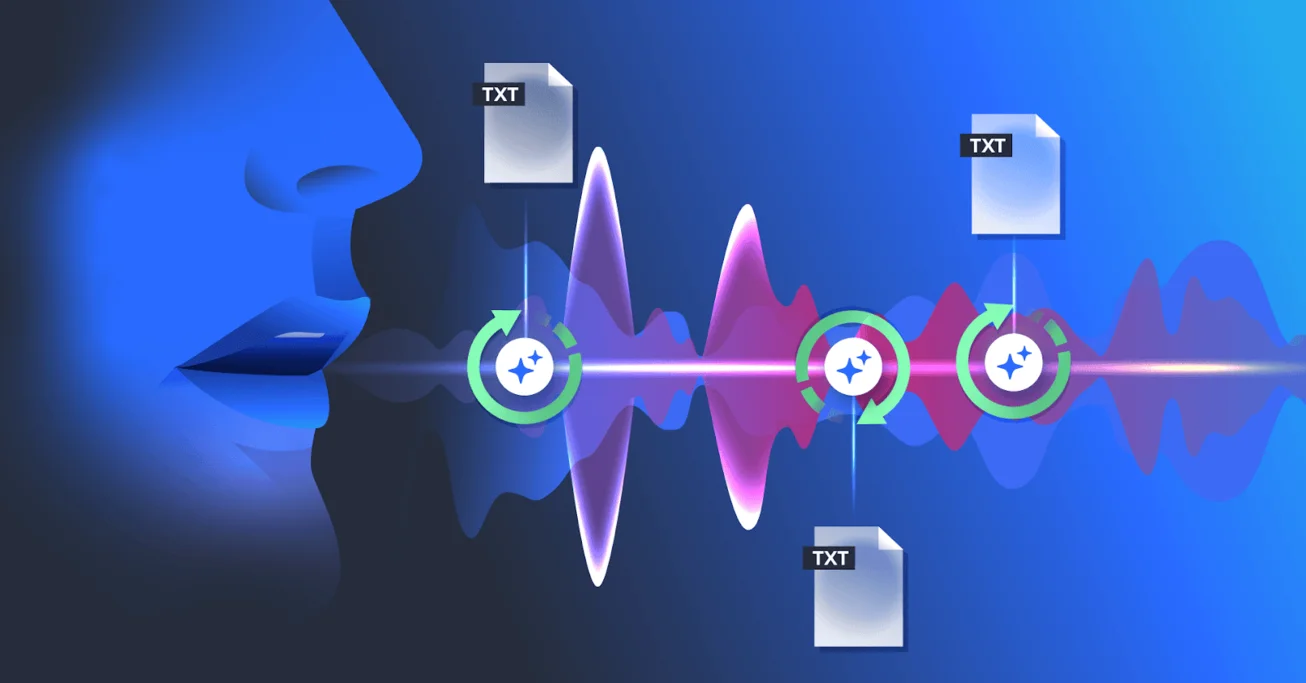
Still manually typing out your audio recordings word by word? In 2026, that is like using a fax machine when email exists. Speech-to-text AI free tools are now accurate, fast, and genuinely free, and this guide will show you exactly how to use them.
Modern AI speech recognition has crossed 95% accuracy even with accents, background noise, and multiple speakers. Whether you are a student transcribing lectures, a content creator repurposing podcast audio, a journalist turning interview recordings into text, or a business team that needs meeting notes automatically, you no longer need to pay for a subscription or hire a transcriptionist.
In this step-by-step guide, you will learn what AI speech-to-text is, how it works under the hood, how to use a free AI speech-to-text tool right now, and which tools give you the best results globally. Every step in this guide is practical and actionable, no theory without application.
What Is Speech-to-Text and Why Most People Get It Wrong
Speech-to-text (STT) is the process of converting spoken audio into written text using artificial intelligence. But here’s what most people confuse: it is not the same as voice commands.
When you say, “Hey Siri, set a timer,” that’s voice recognition for commands; the AI only needs to understand intent. Speech-to-text is different. It listens to full, continuous sentences, identifies every word, handles pauses and filler sounds, and converts the entire spoken stream into readable, editable text.
The real breakthrough in this space happened when OpenAI released Whisper, an open-source speech recognition model trained on hundreds of thousands of hours of multilingual audio. Whisper brought near-human transcription accuracy to everyday users, and it’s now the backbone of many free tools available on the market, including ITS AI’s Speech to Text tool.
This technology works across accents, background conditions, and dozens of languages, making it genuinely useful for real people in real situations, not just tech labs.
How AI Speech-to-Text Actually Works
You don’t need a computer science degree to understand this; the process breaks down into three clean steps.
Step 1: Audio Analysis
When you upload a file, the AI splits your audio into tiny time-based segments called “frames.” Each frame is just a fraction of a second long. The model analyzes the acoustic properties of each frame, the frequency, pitch, and tone patterns that make up human speech.
Step 2: Pattern Matching
The AI compares these acoustic patterns against a massive database of language it was trained on. It doesn’t just match individual sounds; it uses context. It understands that in the phrase “I’ll meet you there,” the word “meet” makes far more sense than “meat,” even if they sound identical. This contextual understanding is what separates modern AI from old-school voice recognition.
Step 3: Text Output
The predicted words are assembled, punctuation is added automatically, and the result is returned as clean, editable text ready for you to copy, refine, or export.
Accuracy to expect: Top AI transcription tools today achieve between 95% and 99% word accuracy on clear audio recorded in a quiet environment. That’s comparable to what a human transcriptionist would produce at a fraction of the time and cost.
Who Actually Uses Speech-to-Text?
Speech-to-text isn’t just for tech enthusiasts. Here are the people who use it every single day and why it matters to them.
Podcasters convert their episodes into written show notes, blog posts, and social media quotes without doing any of the writing themselves. A 30-minute episode becomes a 3,000-word article in minutes.
Students record lectures they couldn’t write fast enough and get a full, searchable transcript afterward, making revision dramatically easier.
Journalists and researchers upload interview recordings and pull exact quotes in seconds, instead of rewinding audio fifteen times looking for the right sentence.
Business professionals turn Zoom, Google Meet, and Teams recordings into structured meeting minutes with action items without needing someone to take notes live.
Content creators extract subtitles from video audio automatically, making their content accessible and boosting engagement on platforms like YouTube.
Legal and medical professionals transcribe depositions, consultations, and recorded sessions that would otherwise require expensive specialized services.
In every one of these cases, the job gets done faster, cheaper, and with less effort. That’s not a minor convenience; it’s a genuine productivity shift.
One content creator using ITS AI’s all-in-one platform reported converting a 30-minute podcast episode into a full blog post draft in under 5 minutes (transcription and writing combined).
How to Convert Speech Into Text for Free Step by Step
There are dozens of tools that claim to offer free transcription. Most come with heavy restrictions 5-minute caps, mandatory sign-ups, or watermarked exports. ITS AI takes a different approach: its Speech to Text feature is included even on the free plan, powered by OpenAI Whisper, and accessible directly from your browser.
Here’s exactly how to use it:
Step 1: Go to ITS AI
Head to ai.it-s.com and log in or create your account. The free plan gives you access to the speech-to-text tool with no credit card required.
Step 2: Open the Speech to Text Tool
From your dashboard, find the “AI Speech to Text” tool. It’s listed under the Blog and content tools section; you’ll spot it quickly.
Step 3: Upload Your Audio File
Drag and drop your audio file, or use the upload button. ITS AI supports the most common formats: MP3, WAV, and M4A. If you’re uploading a recording from your phone, it will almost certainly be in a compatible format.
Step 4: Select Your Language
If your audio isn’t in English, select the correct language from the dropdown before processing. ITS AI’s multilingual support means your transcript will be accurate regardless of which language was spoken.
Step 5: Click Transcribe
The AI processes your file and returns editable text typically within seconds for short recordings and within a minute or two for longer files.
Step 6: Review and Export
Read through the transcript, make any small corrections (usually just proper nouns or brand names), and copy or export the final text. You’re done.
Pro Tip: For maximum accuracy, upload audio recorded at 128kbps or higher. WAV files tend to give slightly better results than compressed MP3s. And if your recording has multiple speakers, ask them to leave a brief pause between turns; it helps the AI separate sentences cleanly.
5 Mistakes People Make When Transcribing Audio
This section is something most guides skip entirely, which is exactly why it’s here. Knowing what not to do saves you from re-uploading files and wondering why your transcript came back garbled.
Mistake 1: Recording in a Noisy Environment
Background music, air conditioning, and open-office chatter compete with your voice and confuse the AI. Fix: record in a quiet room, or use a cardioid microphone that captures sound directionally and rejects background noise.
Mistake 2: Using Heavily Compressed Audio
If your audio file was compressed at a very low bitrate (below 64kbps), a lot of acoustic information has already been lost before the AI even sees it. Fix: export or record at 128kbps minimum. If you’re recording on your phone, the default setting is usually fine.
Mistake 3: Overlapping Speakers With No Pauses
When two people speak over each other, the AI struggles to separate what each person said. Fix: brief pauses between speaker turns dramatically improve transcript quality. In post-production, you can always cut awkward silences, but you can’t recover a garbled transcript.
Mistake 4: Not Reviewing the Output AI
Transcription is 95–99% accurate, not 100%. Proper nouns, technical jargon, unusual brand names, and domain-specific terminology are where errors sneak in. Fix: always do a quick pass through the transcript before using it. It takes two minutes and catches the errors that matter.
Mistake 5: Using the Wrong Tool for Long Files
Many free speech-to-text tools cap you at 5 minutes per session. If you upload a 45-minute interview and it silently stops processing after the first 5 minutes, you’ll lose most of your content. Fix: check the file duration limit before uploading. ITS AI handles longer files without forcing you to split them manually.
Free vs. Paid Speech-to-Text: What Do You Actually Get?
Not all free plans are created equal. Here’s an honest comparison of what you can typically expect:
| Feature | Free Plan | Paid Plan |
| Speech-to-text access | Included | Included |
| File format support | MP3, WAV, M4A | Extended formats |
| Language support | Core languages | More languages |
| Export options | Copy/basic text | PDF, DOCX, SRT |
| Processing priority | Standard queue | Priority |
| Bulk transcription | ||
| Team collaboration |
ITS AI’s free plan includes the Speech to Text feature, making it one of the few platforms where you can genuinely transcribe audio to text without a credit card. For occasional users (converting a weekly meeting, transcribing an interview once in a while), the free plan handles everything you need.
If you’re a daily user, a podcaster producing multiple episodes per week, a researcher processing hours of interview audio, or a business handling client calls at scale, upgrading to the Premium plan at $9.99/month unlocks priority processing, extended file support, team collaboration, and access to all of ITS AI’s 160+ tools alongside transcription.
Privacy and Security: Is Your Audio Safe?
This is a question most transcription guides completely ignore, which is a problem because it matters.
When you upload audio to any online tool, you’re sending potentially sensitive information, meeting recordings, client conversations, and personal voice notes to a third-party server. Before you do that, you should understand what happens to your data.
ITS AI processes your audio for transcription only. Files are not permanently stored after processing, and your content is not used to train third-party models or shared with advertisers. This aligns with how the underlying Whisper model was designed to work as a processing engine, not a data collection tool.
That said, a general rule applies to any transcription service: if you’re handling legally privileged recordings (attorney-client conversations, medical consultations, or confidential business negotiations), always review the platform’s full data policy before uploading. For the vast majority of use cases podcasts, lectures, interviews, and meeting notes you’re in safe territory.
What Else Can You Do With Your Transcript?
Getting a transcript is just step one. Here’s where the real productivity gain kicks in.
Once your speech is converted to text, you can:
- Feed it into ITS AI’s Article Wizard to turn a raw transcript into a polished blog post automatically. Check out how to write a full blog post with AI in 10 minutes for exactly how this workflow runs.
- Use the AI ReWriter to tighten the language, remove filler phrases, and improve clarity without changing your meaning.
- Generate social media posts from the transcript pull three key points and turn them into LinkedIn posts, tweets, or Instagram captions.
- Create subtitles from the text for YouTube or video platforms to boost accessibility and SEO reach.
Frequently Asked Questions
Can I convert speech into text online without downloading any software?
Yes, ITS AI works entirely in your browser. No installation, no plugins, no setup required. Open the site, log in, upload your file, and you’re transcribing it.
How accurate is AI speech-to-text in 2026?
Modern AI models powered by Whisper and similar architectures consistently achieve 95–99% word accuracy on clear audio. Accuracy drops with background noise, very strong accents, or low-quality recordings but for standard use cases, the results are excellent.
Is there a genuinely free way to transcribe from audio to text?
Yes. ITS AI’s free plan includes the speech-to-text tool with no credit card required. It’s one of the few platforms that doesn’t bury transcription behind a paywall.
What audio formats are supported?
MP3, WAV, and M4A are the most common formats, and all three are supported. If you’re recording on a smartphone, your files will almost certainly be in one of these formats by default.
Can I transcribe audio in languages other than English?
Yes, ITS AI’s multilingual support covers a wide range of languages. Select your language before processing for best results.
How long does transcription take?
Most files under 10 minutes are processed in under 30 seconds. Longer files take proportionally more time, but processing is handled efficiently; you won’t be waiting long.
What’s the difference between voice recognition software and transcription tools?
Voice recognition software (like Siri or Google Assistant) is designed to recognize spoken commands and trigger actions. Transcription tools are designed to convert full, continuous speech like a conversation, lecture, or interview, into complete, readable text. They serve different purposes.
Final Verdict
If you’ve been manually typing out recordings, rewinding audio files, or paying for transcription services that charge by the minute, you’ve been doing it the hard way.
AI speech-to-text technology has reached a point where the output is reliable, the process takes seconds, and the free options are genuinely useful. There’s no longer a reason to avoid it.
ITS AI’s Speech to Text tool runs on OpenAI’s Whisper model, works in your browser, and is available on the free plan: no credit card, no time-limited trial, and no watermarks. Upload your file, get your transcript, and move on to what actually matters.
Create your free account and transcribe your first audio file now →